
Managing your relationships
No, not your personal ones but those that appear in model-driven apps.
In a model-driven app form, the Related tab shows links to tables that are related to the table for the record in the form. The relationship might be a one to many or a many to many.

When customizing model-driven apps, you decide which tables to include in the app, which ones to show in the site map and how they are ordered.
But tables that you don't include in the app will show in the Related tab.
What is not so obvious is that you can edit the items shown under Related to add or remove tables and change the order in which items are shown.
To do this:
At make.powerapps.com, navigate to the form for the relevant table.
Notice that in the tree view, the Related tab isn't shown.

Click on Related in the middle pane
The list of related items is shown
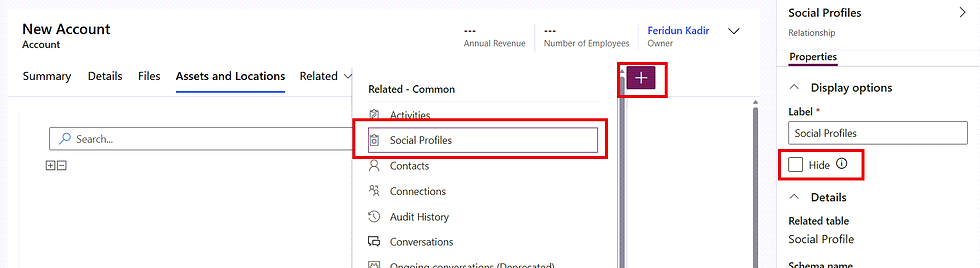
To remove a related item, select it and then select Hide on the right-hand pane
To add a related item, click the + and select the relevant relationship
To move a related item, select it and then drag it to the desired place.
Related Groups
Related items are shown in groups. The groups are by default named:
Common
Sales
Service
Marketing
Process Sessions
And this appears to be the same naming in environments with and without Dynamics 365 apps. The same group names are used in custom tables.
As far as I know, you can't create or delete groups but you can rename groups.
To rename a group, select it and change the label on the right-hand pane.

If a group has no items, its name isn't shown in the user interface. I did notice that if you move all the related items out of a group, the group isn't shown the next time you edit the form. So it seems that there is no way to add items to an empty group.
But if you switch to the Classic Editor, you see all the groups even if they have nothing in them.
You can also manage which items appear in the Related tab in the Classic Editor. In the image below, note the empty groups on the bottom left.

Using JavaScript
You can also use JavaScript to programmatically control which related items appear by using formContext.ui.navigation
But that's beyond the scope of this post.


Comments